September 2026 · 8 min read
How to Print a Cheque in HP Printer — Complete UAE Guide
HP LaserJet printers are the most common choice for cheque printing in UAE offices — affordable, compact, and accepted by every UAE bank. This guide walks you through the exact steps: how to load the cheque, which settings to use, how to align fields to your bank stationery, and how to fix the one printer setting that misaligns nearly every first-time print.
Quick Answer
The best HP printers for UAE cheque printing are the HP LaserJet Pro M15a and M17a. Load the cheque in the manual bypass tray, face up, short edge first. Set paper size to A4, scale to 100% actual size (never Fit to Page), and use cheque printing software to position your fields. Do a test print on plain paper first. The entire process takes under 2 minutes once set up.
Step 1: Load the Cheque into the Manual Bypass Tray
The most important hardware step. Never put a cheque into the main paper cassette — the friction rollers will mark it and the feed path is too long, risking a jam or a crease in the cheque.
On the HP LaserJet M15a, M17a, and M107a, the manual bypass slot is at the front of the printer, just above the paper cassette. It is labelled "priority feed" on some models.
- 1.Open the manual bypass tray door so it lies flat.
- 2.Slide the paper guide to match the width of the cheque.
- 3.Insert the cheque face up, short edge first (portrait orientation, top of cheque going in first).
- 4.Slide it in gently until you feel slight resistance — the feed rollers have caught it. Do not push further.
Step 2: Set Paper Size to A4 (or Custom) in Printer Settings
Open Control Panel → Devices and Printers, right-click your HP printer, and choose Printing Preferences. Set the paper size to A4.
Why A4 if the cheque is smaller? Because cheque printing software lays out the full A4 canvas and places each field at its exact pixel coordinate. When you print on a cheque, only that portion of the page is printed — the rest is simply not on the physical paper. Your software knows the cheque dimensions and positions fields accordingly.
If your HP model prompts you separately for the source tray, choose Manual Feed or Priority Feed to match where you loaded the cheque.
Step 3: Use Cheque Printing Software to Set Field Positions
This is where most people struggle when trying to print cheques manually using Word or Excel — there is no reliable way to position text precisely enough across different printers and screens. A millimetre of drift means a field falls outside the printed box.
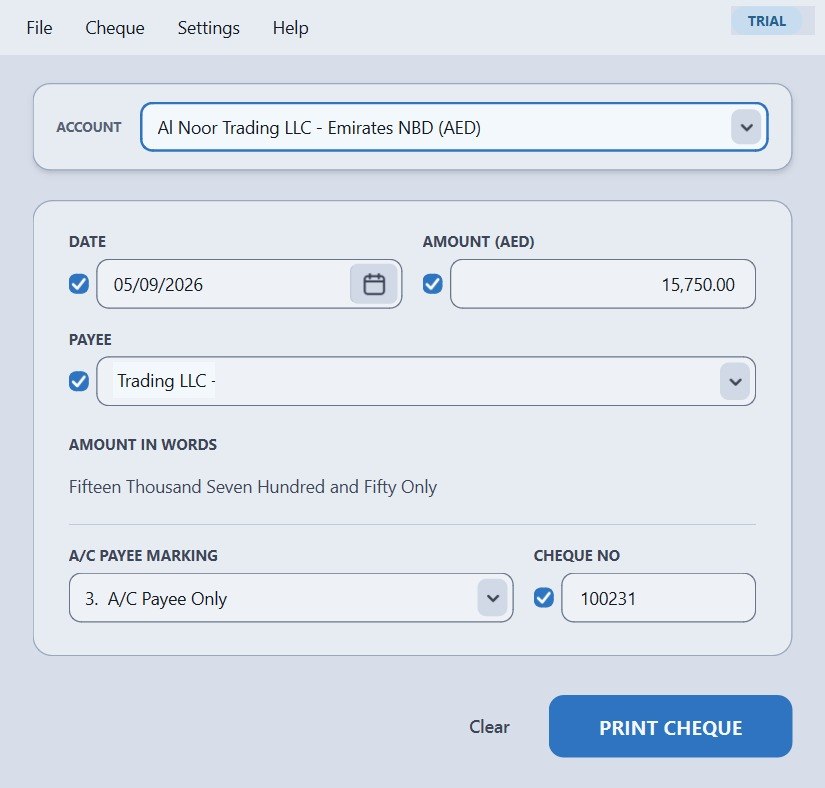
Cheque printing software solves this by storing the exact coordinates for each bank's cheque layout. You select your bank (Emirates NBD, FAB, ADCB, Mashreq, and others are pre-loaded), enter the payee name, amount, and date, and the software places everything in the right position automatically.
- Payee name field — printed in the correct horizontal position and baseline
- Amount in digits — right-aligned in the amount box
- Amount in words — spans the correct line with UAE Dirhams and Fils format
- Date — day, month, year in the right boxes
You can also preview exactly how the print will look on the cheque before a single sheet is used, which is valuable when setting up a new bank layout for the first time.
Step 4: Do a Test Print on Plain A4 First
Before loading a real cheque, print the layout on a plain A4 sheet at 100% scale. Then hold the printed A4 up against your cheque (front to front) under a bright light or a window.
You should be able to see all the printed fields through the paper and confirm they land inside the boxes on the cheque. If they are even slightly off, adjust the field coordinates in the software before printing on the real cheque.
This step saves cheques. UAE bank cheque stationery is not replaceable on demand — banks issue a fixed book, and wasted cheques must be cancelled and kept for audit purposes. One test print on A4 is always worth it.
Step 5: Load the Real Cheque and Print
Once your test print confirms alignment, insert the real cheque into the manual bypass tray (face up, short edge first — same as Step 1). Click Print in the software.
The HP LaserJet will pull the cheque through in about 10–15 seconds. Remove it immediately from the output tray — do not stack other papers on top while the toner is still warm.
Review the printed cheque against your entries before signing. Check:
- Payee name spelling — matches exactly the recipient's official account name
- Amount in digits — correct and legible in the box
- Amount in words — spelled out in full, Dirhams and Fils, no abbreviation
- Date — correct day, month, year in the correct boxes
- No smear or toner offset on the cheque surface
If everything looks correct, sign the cheque. The print process is done.
The Most Common HP Print Setting Mistake: Fit to Page Scaling
If your cheque fields are consistently shifted slightly — payee name too far left, amount in the wrong box, date fields off — the cause is almost always Fit to Page scaling being active in the Windows print dialog.
When you click Print in Windows, a dialog box appears. Look for a setting called:
- "Fit to Page" or "Scale to Fit Paper"
- "Shrink to Printable Area"
- Scale %: anything other than 100
Any of these will rescale your layout by 3–8%, shifting every field off its correct position on the cheque. The fix:
- In the Windows print dialog, click More Settings or Printer Properties.
- Find the scaling or finishing tab.
- Set scale to 100% or choose Actual Size.
- Uncheck any "fit", "shrink", or "scale to fit" options.
- Save as default so you never have to repeat this again.
Good cheque printing software handles this automatically — it sends the print job at 100% scale and bypasses the Windows dialog where the problem usually occurs. This is one of the practical reasons purpose-built software is worth using over manual Word/Excel methods.
Can I Use a Normal Printer for Cheque Printing?
Yes — as long as it is a laser printer. Any A4 monochrome laser printer with a manual bypass tray will work for printing UAE bank cheques. HP is popular, but Brother, Canon, and Samsung laser printers work equally well using the same approach.
The requirements are simple:
| Requirement | Why it matters |
|---|---|
| Laser (not inkjet) | Laser toner is water-resistant and smear-proof. Inkjet ink can run if the cheque is damp, risking bank rejection. |
| Manual bypass / priority feed tray | Allows you to feed one cheque at a time without bending or jamming the cheque stock. |
| 600 DPI minimum | Produces clear, legible text in small font sizes — important for the amount-in-words line. |
| A4 paper size support | Required by the software's coordinate system. All standard laser printers support A4. |
You do not need a MICR printer (magnetic ink). UAE banks do not require MICR toner for business cheques. Standard black toner is fully accepted by Emirates NBD, FAB, ADCB, Mashreq, DIB, and all other UAE banks.
What HP Models Work Best for Cheque Printing?
These three HP LaserJet models are the most widely used for cheque printing in UAE offices. All three are compact enough to sit on a desk, affordable, and available from Carrefour, Sharaf DG, Emax, Jacky's, noon.com and Amazon.ae.
| Model | Speed | Wireless | Best for |
|---|---|---|---|
| HP LaserJet Pro M15a | 19 ppm | No | Budget offices, USB connection, low cheque volume |
| HP LaserJet Pro M17a | 19 ppm | No | Same as M15a, slightly newer chipset, easier toner swap |
| HP LaserJet Pro M107a | 20 ppm | No | Higher monthly print volumes, sharper output at small sizes |
All three use the same manual bypass tray loading method described in Step 1. The setup process and software configuration is identical across all models.
If you need wireless, the HP LaserJet Pro MFP M130fw adds Wi-Fi and scan functionality, useful if your accounts team prints from multiple computers. For cheque printing only, the simpler USB models are sufficient and cheaper.
HP Printer + Software vs Writing Cheques by Hand
Many small UAE businesses still fill cheques by hand. Here is why switching to printer + software pays off quickly:
| Factor | By Hand | HP Printer + Software |
|---|---|---|
| Time per cheque | 3–5 minutes | 30–45 seconds |
| Errors (spelling, amount) | Frequent | Near zero (software validates) |
| Legibility | Varies | Always clear |
| Amount in words | Written manually, error-prone | Auto-generated from digits |
| Bank rejection risk | Higher (alterations, smear) | Very low |
| PDC batch printing | Tedious for 10+ cheques | Print multiple in minutes |
| Record keeping | Paper copies only | Digital log of every cheque |
The time saving alone makes the switch worthwhile for any business issuing more than 10 cheques a month. For businesses issuing PDC (post-dated cheques) in bulk — common in UAE real estate and trade — printing is the only practical approach.
Cheque Printing Software — UAE
Print cheques on your HP printer — aligned to any UAE bank
The software saves your bank layout, lets you preview before printing, and handles payee, amount in words, and date fields automatically.
- ✓ HP LaserJet compatible
- ✓ All UAE banks pre-loaded
- ✓ 15 cheques free
Free version: 15 cheques. Complete package AED 950.
Frequently Asked Questions
Can I print a UAE bank cheque on an HP printer?
Yes. Any HP LaserJet with a manual bypass tray can print on UAE bank cheque stationery. The manual bypass lets you feed one cheque at a time without bending or jamming it. UAE banks accept laser-printed cheques from all major HP models including the M15a, M17a, and M107a.
What HP printer setting should I use for cheque printing?
Use the manual bypass (priority feed) tray, set paper size to A4, and most importantly set print scale to 100% actual size — never "Fit to Page". The Fit to Page option shrinks your layout by a few percent and shifts all fields off-position on the cheque. Save 100% scale as your default to avoid this error on every future print.
Do I need special ink for cheque printing on an HP printer?
No. Standard HP black toner cartridges are fully accepted by all UAE banks. UAE banks do not require MICR (magnetic ink) toner for business cheques. Standard toner dries instantly, is water-resistant, and produces clear text — which is all that is required. You do not need to buy special or third-party cartridges.
Why does my HP printer misalign the cheque?
The most common cause is "Fit to Page" or "Scale to Fit" being active in the Windows print dialog. This scaling reduces your layout by roughly 3–5%, shifting every field off the cheque. Fix: open printer properties, find the scaling or layout tab, and set it to 100% or Actual Size. Using dedicated cheque printing software avoids this issue entirely — the software handles scaling automatically.
Can I print on pre-printed cheque stationery with an HP printer?
Yes — that is exactly what the software does. Cheque printing software lets you set the exact pixel position of each field (payee name, amount in digits, amount in words, date) so they land inside the pre-printed boxes on your bank's cheque stationery. You print only the variable text; the security printing is already on the cheque. No special paper or special printer is needed — just your HP LaserJet and the right software.
Summary
Printing cheques on an HP printer in the UAE is straightforward once you know the correct process. The key points:
- Use the manual bypass tray — not the main cassette
- Load face up, short edge first
- Set paper size to A4 in printer settings
- Set print scale to 100% — disable any Fit to Page option
- Use cheque printing software to position fields precisely for your bank's stationery
- Always do one test print on plain A4 before printing on the real cheque
The HP LaserJet M15a and M17a are the most popular and cost-effective models for this purpose in UAE, and widely available at major electronics retailers. The free cheque printing software download includes 15 test cheques so you can verify the full workflow before committing.